single day that we come across an iPhone case that is different from the rest, and this particular puppy, the $34.95 iPhone 5 Polycarbonate Wallet happens to not only provide your iPhone 5 with an adequate amount of protection against knocks, scratches, and even soften the blow should your sweaty palms happen to let it slip from your grip, but it also comes with the added storage space for you to stash away some cash, credit cards, and even identification documents.
Showing posts with label Iphone. Show all posts
Monday, 12 August 2013
iPhone 5 Polycarbonate Wallet
single day that we come across an iPhone case that is different from the rest, and this particular puppy, the $34.95 iPhone 5 Polycarbonate Wallet happens to not only provide your iPhone 5 with an adequate amount of protection against knocks, scratches, and even soften the blow should your sweaty palms happen to let it slip from your grip, but it also comes with the added storage space for you to stash away some cash, credit cards, and even identification documents.
Wednesday, 7 August 2013
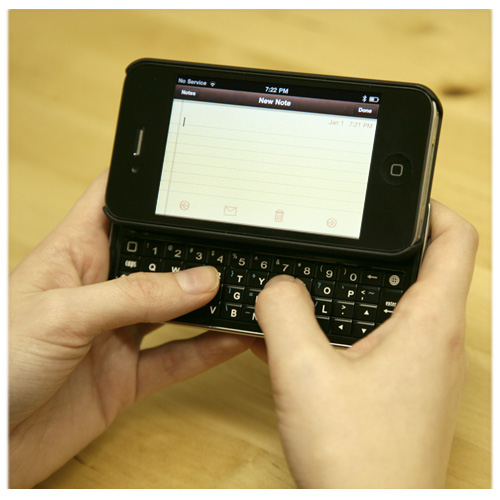
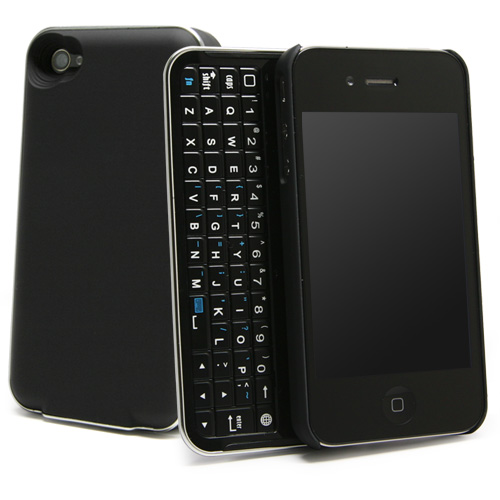
iPhone 4 Case With Slider QWERTY Keyboard
Just for $70, Keyboard Buddy from Boxwave fixes the biggest problem Blackberry users had and still have with the iPhone. It adds a physical keyboard! The case basically contains a sliding Bluetooth keyboard that can pair with the iPhone 4 and act as the perfect onscreen keyboard replacement.
Labels:
ANDROID,
Blackberry,
bluetooth,
Boxwave,
Gadget,
Gadget review,
GADGETS,
Handhelds,
Iphone,
iPhone 4,
smartphone
Monday, 5 August 2013
Smartwatch lets you control it using simple gestures
We've seen the clever combination of Google Glass and the Tesla. And we've witnessed the amazing combination of the Occulus Rift with a flying drone. But in terms of practicality, not all mashups offer the best mileage per astounding feature. However, a new combination of gesture control and the emerging space of smartwatches just might deliver a truly practical innovation combination.
The Hot Watch smartwatch is a device that allows you to control some of its functions via simple gesture controls. With just a wave of the hand, the smartwatch allows the user to answer a call, reject a call, or dial a favorite number. There's also a function that automatically dials an emergency number if the wearer suddenly falls down. In addition to calling functions, the Hot Watch also supports apps for SMS messaging, as well as weather, stock, pedometer, and social networking.
Another ingenious feature is the private call feature, which uses a directional speaker to reflect a call's sound from the palm of your hand. With the ability to connect via Bluetooth to an iPhone or Android phone, the water resistant device also comes with an e-ink display that accepts swipe and tap inputs.
The final retail version of the device will cost $169 for those not pledging early support on the company's Kickstarter campaign, and estimated delivery time will be this December. As of this writing, the Kickstarter already has over $58,000 in funding towards its $150,000 goal. And the campaign still has 37 days to go. Only time will tell if this idea will pan out or end up like the Pebble.
Sunday, 4 August 2013
Concept of a folding Apple iPhone 6
To confirm his words he presented the concept of a mobile phone iPhone 6. As opposed to the original smartphone Apple, even if it has not yet announced, this gadget boasts the folding case. The original design of electronic toy transforms into a 7.5-inch tablet computer, the same comfort as the iPad mini. This really comes in handy when you can carry in your pocket just one gadget instead of two.
Labels:
Apple,
Concept of a folding Apple iPhone 6,
device technology,
future gadgets,
Future technology,
Gadget,
GADGETS,
Iphone,
iphone 6,
Phone design,
product design,
product future,
TECHNOLOGY
Saturday, 3 August 2013
Smartphone Controlled Desk Pet Tankbots
Can navigate a maze all by itself in automatic mode
Advanced optical navigation technology in a tiny package
You probably didn't know, but we're psychic. Need an example of our talents? On your desk is currently: at least one computer, at least one monitor, many, many, many cables, a coffee mug, a dirty coffee mug, a water bottle, a stack of papers from that HR person who claimed you were going to have a paperless office, and the crumbs of whatever meal you last snarfed up at your desk. Are we close?
That clutter will come in handy when you have a Desk Pet Tankbot. You see, the Tankbot is a maze master, searching for obstacles and navigating around them with ease. Set up a labyrinth on your desk and let your Tankbot zip around, achieving robo-enlightenment while giving you a few precious moments of procrastination before starting your weekly TPS report. Prefer to be in control of your tank? Attach the Universal Remote to your smartphone and use the free Desk Pet app to drive your TankBot all over the place.
Product Specifications
For Ages 8 and Up
Tankbots are randomly picked from four different colors (Grey,Blue,Orange,and Green)
Your desk needs a maze-navigating tank robot
Advanced optical navigation technology means it steers around obstacles
Features light-up eyes and robot sounds
Three modes: touchless navigation, autonomous personality mode, smartphone control
Compatible with iOS devices and Android devices (2.1 and up)
Download the free app from the App Store or Android Market
Insert the DeskPet Universal Remote into your headphone jack to control your TankBot
Integrated USB flip out connector to recharge using your computer
Automatic shut-off after 3 minutes of inactivity to conserve battery life
Batteries: Internal rechargeable battery (40 minutes charge for 15 minutes play time)
BACtrack Mobile Breathalyzer
The nerdiest breathalyzer ever made
Track your BAC, share your drinking habits, more!
Seriously, read the bullets. This thing rocks.
Until now, there were only a couple different types of alcohol geeks. Wine geeks can take one whiff of a glass and tell you where the grapes grew. Beer geeks can lecture you for hours on best practices for brewing a quality IPA. But what about those of us who want to get nerdy about the actual drunkenness? Where's OUR glory?
Holy hops, guys, we found it! The BACtrack Mobile Breathalyzer lets you geek out about your drinking in a way that no other piece of technology can do. Blow into it and your BAC will be transmitted to your iPhone or iPad. Track your BAC over time and the app will be able to estimate when you're sober enough to communicate with others... We all need something to save us from texting a 837 character confession to your crush or emailing your boss about the new time off policy.
But that's not all! The free app lets you take notes and pictures of your beverages in your personal drink diary and share them with your social networks. Text your BAC to your designated driver to let them know to pick you up. Prove to your buddies that your fruity drink really did have rum in it. You can even check out who is drinking in your area or across the world... after all, it's always 5 o'clock somewhere!
Product Specifications
Finally, a product made for drinking nerds
Accurately measure how much alcohol is in your system
Internal air pump insures precise, consistent results
Puts your BAC in context so you know how alcohol affects you
Fuel sensor technology gives you professional-grade accuracy
Track your BAC over time
Get a clear picture of your drinking habits
Gain insight and learn how your body processes alcohol
With ZeroLine technology, estimate when your BAC will return to 0.00%.
Record your drinking habits
Personal drink diary lets you take notes about each drink
Snap pictures of your favorite drinks or places
Share your results with nobody... or everyone
Four levels: Personal, Private, Anonymous, Social
Personal is for your eyes only
Private lets you text results to a designated driver
Anonymous posts your BAC to the world map without revealing your identity
Social lets you post your BAC, notes, and photos to your social networks and the global map.
Explore drinking geeks around the world
World map lets you see real-time BAC results around the world
Free BACtrack app available in the App Store
Compatibility: iPhone 4S, 5, iPad 3, iPad Mini, iPod Touch 5th Gen (Any with Bluetooth 4.0)
What's included
BACtrack Mobile Bluetooth main unit
Micro USB charging cable
3 x reusable mouth pieces
Protective carry pouch
Note: Be smart, nerds. While this does make drinking into Science, it doesn't mean that you can throw caution to the wind. Be safe, okay?
Accurately measure how much alcohol is in your system
Internal air pump insures precise, consistent results
Puts your BAC in context so you know how alcohol affects you
Fuel sensor technology gives you professional-grade accuracy
Track your BAC over time
Get a clear picture of your drinking habits
Gain insight and learn how your body processes alcohol
With ZeroLine technology, estimate when your BAC will return to 0.00%.
Record your drinking habits
Personal drink diary lets you take notes about each drink
Snap pictures of your favorite drinks or places
Share your results with nobody... or everyone
Four levels: Personal, Private, Anonymous, Social
Personal is for your eyes only
Private lets you text results to a designated driver
Anonymous posts your BAC to the world map without revealing your identity
Social lets you post your BAC, notes, and photos to your social networks and the global map.
Explore drinking geeks around the world
World map lets you see real-time BAC results around the world
Free BACtrack app available in the App Store
Compatibility: iPhone 4S, 5, iPad 3, iPad Mini, iPod Touch 5th Gen (Any with Bluetooth 4.0)
What's included
BACtrack Mobile Bluetooth main unit
Micro USB charging cable
3 x reusable mouth pieces
Protective carry pouch
Note: Be smart, nerds. While this does make drinking into Science, it doesn't mean that you can throw caution to the wind. Be safe, okay?
Friday, 2 August 2013
iPhone Keychain Charger
Kii is a compact charger-connector that fits on a keychain for ultimate convenience, accessibility and mobility. It is as lightweight and inconspicuous as any other key and allows users to plug in to charge or sync devices from any computer without having to carry a charger or tote around a cable connector.
Labels:
Apple,
devices,
GADGETS,
Ipad,
Iphone,
ipod,
Keychain Charger,
TECHNOLOGY
Wednesday, 3 July 2013
Making the switch: moving from an iPhone to a Galaxy S4
One noob's guide to successfully migrating from iOS to Android, and the best apps to make it all work.
I’ve recently made a very difficult life decision.
I’ve decided it’s time to try a phone other than my trusty iPhone.
Since the iphone 3 I’ve been firmly in the Apple camp for my smartphone. Yes, I’m aware it’s a terrible walled-garden, and yes, I know that Steve Jobs was a notorious puppy-killer and megalomaniac – or something, if you pay attention to the constant inter-camp bickering. But, in my defense, I would just like to say what everyone usually says in defense of Apple products.
They just work. I do enough tweaking and fiddling with the various PCs in my life that something that just does what it says in the tin is pretty attractive. Plus I’m a long term user of iTunes, and while I know people who really do think it is the devil, I’ve never had issues, and really like the easy integration of music across my devices.
That said, a couple of things have influenced my decision to move. My current iPhone is a 4s, and it’s a little on the heavy side; I wear suits quite a bit, and it’s not unusual for my phone to ruin the line of a well-cut suit, both in terms of bulk, and in the way it drags down one side. When I’m wearing jeans, though, the phone lives in my back pocket, where its hard edges have worn two inconvenient holes in the back pocket of every pair I own.
And then there’s just plain curiosity – I probably should have a go at the other side of things, given my line of work.
So, being a firm believer that if it’s worth doing, it’s worth doing in an extreme way, I’ve gotten hold of a shiny new Samsung Galaxy S4, and I’m making the leap. I’m not the only person to switch sides, or contemplate it, so I thought I’d document the process and list what apps and tools have made the transition as easy as possible.
Hopefully...
OMG it’s light!As I said, one of the big draws of the Galaxy S4 is its weight, and it’s a pretty amazing piece of kit in that regard. The plastic is a big change from the glass-backing of my iPhone 4s, but the new handset does come with some drawbacks.
First up, it’s so large that it doesn’t fit in my jeans pocket properly, and while my iPhone never fell out of my pocket, the S4 has dropped to the floor twice in a single week while I’m sitting down.
Thankfully, the plastic seems plenty tough – there’s not a scratch on the unit. And yes, it does buckle a far better swash in a suit, despite being larger. So that’s one win for the new phone right away.
Of course, the sartorial scale is just one measure of a good phone, and for the majority of users, not even the most important (you philistines!). As weird as it may sound, the prime use for a phone is still communication, so the first step of the conversion process was to get all my contacts across to the S4.
Thankfully, there’s Samsung Smart Switch, which worked pretty seamlessly, though not perfectly.
You can download the software here, and once you’ve got your iPhone backed up to your PC (not a cloud backup, but one on your actual hard drive), you’re in luck. And no, there isn’t a version for Mac as of writing, but one is apparently coming.
Once the application’s installed, run it and it will ask you to plug in your Samsung device. Once it’s connected, you can select what device’s backup you’re using, and which particular backup to use. In our case, it was a little trickier; my iTunes files are stored on the home NAS, and Smart Switch didn’t seem to like navigating beyond my desktop. I had to copy the backup from the server to my PC, but then it worked fine.
With the backup chosen, you get a simple menu where you can pick what you want to backup, including not just contacts, but images, videos, music and more. Of course, it’s also worth remember that, out of the box, the S4 has only 8GB of storage – I skipped porting my music across, because even on my 16GB iPhone I was pushing things to its limit.
But that’s okay. With the ability to expand storage via a MicroSD card, I was looking forward to going nuts and getting my entire collection across.
You can never tell when you’ll want to play the most obscure track in your collection, right?
One last thing – Smart Switch will offer to download Samsung’s Kies handset management app, but it’s really not at all essential. In fact, it's pretty dire.
Contacts and Google interactions are... oddOne of the oddest things about signing into Gmail on the new phone is the way your contacts are suddenly full of Google+ and Gmail contacts – the G+ stuff is especially annoying, as I used G+ for approximately 47 hours before finding it inherently pointless (which is harsh, but I really do only have time/spoons for a handful of social media avenues). Thankfully you can turn off G+ contact-syncing, though it is about three screens down in the Accounts part of the phone’s settings.
So, with all that cleaned out of contacts, I was able to see that pretty much everything had worked fine with Smart Switch – which was sadly wrong. As some SMSes started coming in, it looked as though while some contacts had came across, the numbers associated with them didn’t. Not too many, but if you’re going through the process it’s worth doing a quick double check for missing details, and then manually copying across whatever’s needed. In my case, it was only three phone numbers out of 46 people.
One thing that has really opened my eyes to Android (even Samsung’s rather bloated version of it) is the sheer amount of customisation power on offer, in terms of the look and functionality of the various home screens. So, having gotten a taste of that in nixing G+’s control of my phone, I went digging a little further.
There are a tonne of voice and motion control options in the S4, and to put it mildly, some work better than others. At the best of times I’ve always found voice control to be quite the gimmick, so killing off all of that not only means there’s that much less processing on the CPU, but you can also then speed up the response of the home button. By turning off the ‘Open via the home key’ option for the S Voice shortcut, you actually get faster performance when you actually want to go to the home screen – so, pretty much all of the time.
The gesture input tricks are kinda neat, but, again, hardly world-changing. Half the time we find the phone can’t even pick them up, so turning them off entirely is, again, a bit of a battery saver. And anyway, answering your phone by passing your hand over seems like a great way to accidentally answer the phone a lot.
(Or perhaps I’m just anti-social like that)
Quick Glance is useful, though, and generally works pretty well. I’ve kept that enabled, so that I can simply pass my hand over the phone to get a rundown of missed calls, messages, and check the time.
The S4 comes with a host of security options, and I couldn’t resist giving the facial recognition a try. Sadly, it too falls into the cute-gimmick category. The contortions required to get your face at the right angle to the phone, with the right lighting, renders the function torturous at best. Either stick with a simple passcode, or use the pattern method.
Finally, one of the most useful things for anyone who worries about exceeding their data cap – so, most people, really – is the ability to not only easily monitor daily usage, but also set a mobile data limit, via Settings | Connections | Data Usage. I’d consider this one essential for anyone who uses their device for media consumption, and even more so if you’re a frequent traveller.
I’ve got the music in me (and my phone)I’m really blown away by the ability to expand my phone’s storage capacity, and the MicroSD cards are pretty cheap – a 32GB card will set you back less than $50. My music collection currently runs to over that, but jests aside, there are some albums I know I won’t have the sudden urge to listen to on the road.
I’m sorry, Enya, but teenage me was really only into you because you had a track called Lothlorien.
Of course, Android devices obviously don’t play nicely with iTunes, but there is in fact an app for that, to borrow a phrase. iSyncr has both a free and more fully-featured version for $3.99, and it’s generally considered one of the best Android/iTunes syncing apps out there. It’s a two-application solution, requiring the free/paid version on your phone, and then another free version on the PC you want to get your files off.
Then it’s just a matter of syncing tracks from device to device.
There’s a tonne of other, more or less personal tweaks that I’ve made, like turning off annoying typing sounds, and re-arranging the home screens, but otherwise, my new phone is now up and running as I want it to.
Now to find jeans with a slightly bigger back-pocket...
I’ve recently made a very difficult life decision.
I’ve decided it’s time to try a phone other than my trusty iPhone.
Since the iphone 3 I’ve been firmly in the Apple camp for my smartphone. Yes, I’m aware it’s a terrible walled-garden, and yes, I know that Steve Jobs was a notorious puppy-killer and megalomaniac – or something, if you pay attention to the constant inter-camp bickering. But, in my defense, I would just like to say what everyone usually says in defense of Apple products.
They just work. I do enough tweaking and fiddling with the various PCs in my life that something that just does what it says in the tin is pretty attractive. Plus I’m a long term user of iTunes, and while I know people who really do think it is the devil, I’ve never had issues, and really like the easy integration of music across my devices.
That said, a couple of things have influenced my decision to move. My current iPhone is a 4s, and it’s a little on the heavy side; I wear suits quite a bit, and it’s not unusual for my phone to ruin the line of a well-cut suit, both in terms of bulk, and in the way it drags down one side. When I’m wearing jeans, though, the phone lives in my back pocket, where its hard edges have worn two inconvenient holes in the back pocket of every pair I own.
And then there’s just plain curiosity – I probably should have a go at the other side of things, given my line of work.
So, being a firm believer that if it’s worth doing, it’s worth doing in an extreme way, I’ve gotten hold of a shiny new Samsung Galaxy S4, and I’m making the leap. I’m not the only person to switch sides, or contemplate it, so I thought I’d document the process and list what apps and tools have made the transition as easy as possible.
Hopefully...
OMG it’s light!As I said, one of the big draws of the Galaxy S4 is its weight, and it’s a pretty amazing piece of kit in that regard. The plastic is a big change from the glass-backing of my iPhone 4s, but the new handset does come with some drawbacks.
First up, it’s so large that it doesn’t fit in my jeans pocket properly, and while my iPhone never fell out of my pocket, the S4 has dropped to the floor twice in a single week while I’m sitting down.
Thankfully, the plastic seems plenty tough – there’s not a scratch on the unit. And yes, it does buckle a far better swash in a suit, despite being larger. So that’s one win for the new phone right away.
Of course, the sartorial scale is just one measure of a good phone, and for the majority of users, not even the most important (you philistines!). As weird as it may sound, the prime use for a phone is still communication, so the first step of the conversion process was to get all my contacts across to the S4.
Thankfully, there’s Samsung Smart Switch, which worked pretty seamlessly, though not perfectly.
You can download the software here, and once you’ve got your iPhone backed up to your PC (not a cloud backup, but one on your actual hard drive), you’re in luck. And no, there isn’t a version for Mac as of writing, but one is apparently coming.
Once the application’s installed, run it and it will ask you to plug in your Samsung device. Once it’s connected, you can select what device’s backup you’re using, and which particular backup to use. In our case, it was a little trickier; my iTunes files are stored on the home NAS, and Smart Switch didn’t seem to like navigating beyond my desktop. I had to copy the backup from the server to my PC, but then it worked fine.
With the backup chosen, you get a simple menu where you can pick what you want to backup, including not just contacts, but images, videos, music and more. Of course, it’s also worth remember that, out of the box, the S4 has only 8GB of storage – I skipped porting my music across, because even on my 16GB iPhone I was pushing things to its limit.
But that’s okay. With the ability to expand storage via a MicroSD card, I was looking forward to going nuts and getting my entire collection across.
You can never tell when you’ll want to play the most obscure track in your collection, right?
One last thing – Smart Switch will offer to download Samsung’s Kies handset management app, but it’s really not at all essential. In fact, it's pretty dire.
Contacts and Google interactions are... oddOne of the oddest things about signing into Gmail on the new phone is the way your contacts are suddenly full of Google+ and Gmail contacts – the G+ stuff is especially annoying, as I used G+ for approximately 47 hours before finding it inherently pointless (which is harsh, but I really do only have time/spoons for a handful of social media avenues). Thankfully you can turn off G+ contact-syncing, though it is about three screens down in the Accounts part of the phone’s settings.
So, with all that cleaned out of contacts, I was able to see that pretty much everything had worked fine with Smart Switch – which was sadly wrong. As some SMSes started coming in, it looked as though while some contacts had came across, the numbers associated with them didn’t. Not too many, but if you’re going through the process it’s worth doing a quick double check for missing details, and then manually copying across whatever’s needed. In my case, it was only three phone numbers out of 46 people.
One thing that has really opened my eyes to Android (even Samsung’s rather bloated version of it) is the sheer amount of customisation power on offer, in terms of the look and functionality of the various home screens. So, having gotten a taste of that in nixing G+’s control of my phone, I went digging a little further.
There are a tonne of voice and motion control options in the S4, and to put it mildly, some work better than others. At the best of times I’ve always found voice control to be quite the gimmick, so killing off all of that not only means there’s that much less processing on the CPU, but you can also then speed up the response of the home button. By turning off the ‘Open via the home key’ option for the S Voice shortcut, you actually get faster performance when you actually want to go to the home screen – so, pretty much all of the time.
The gesture input tricks are kinda neat, but, again, hardly world-changing. Half the time we find the phone can’t even pick them up, so turning them off entirely is, again, a bit of a battery saver. And anyway, answering your phone by passing your hand over seems like a great way to accidentally answer the phone a lot.
(Or perhaps I’m just anti-social like that)
Quick Glance is useful, though, and generally works pretty well. I’ve kept that enabled, so that I can simply pass my hand over the phone to get a rundown of missed calls, messages, and check the time.
The S4 comes with a host of security options, and I couldn’t resist giving the facial recognition a try. Sadly, it too falls into the cute-gimmick category. The contortions required to get your face at the right angle to the phone, with the right lighting, renders the function torturous at best. Either stick with a simple passcode, or use the pattern method.
Finally, one of the most useful things for anyone who worries about exceeding their data cap – so, most people, really – is the ability to not only easily monitor daily usage, but also set a mobile data limit, via Settings | Connections | Data Usage. I’d consider this one essential for anyone who uses their device for media consumption, and even more so if you’re a frequent traveller.
I’ve got the music in me (and my phone)I’m really blown away by the ability to expand my phone’s storage capacity, and the MicroSD cards are pretty cheap – a 32GB card will set you back less than $50. My music collection currently runs to over that, but jests aside, there are some albums I know I won’t have the sudden urge to listen to on the road.
I’m sorry, Enya, but teenage me was really only into you because you had a track called Lothlorien.
Of course, Android devices obviously don’t play nicely with iTunes, but there is in fact an app for that, to borrow a phrase. iSyncr has both a free and more fully-featured version for $3.99, and it’s generally considered one of the best Android/iTunes syncing apps out there. It’s a two-application solution, requiring the free/paid version on your phone, and then another free version on the PC you want to get your files off.
Then it’s just a matter of syncing tracks from device to device.
There’s a tonne of other, more or less personal tweaks that I’ve made, like turning off annoying typing sounds, and re-arranging the home screens, but otherwise, my new phone is now up and running as I want it to.
Now to find jeans with a slightly bigger back-pocket...
Labels:
apps,
GADGETS,
Galaxy S4,
Gallery,
guide,
ios android,
Iphone,
migrating,
noobs,
successfully,
switch
Subscribe to:
Comments (Atom)